On this page
Re-login on OpenCloud Desktop after the shared login
Reconnect the OpenCloud desktop client to KM0 Cloud using the shared login: server URL, browser sign-in, and sync folder.
Introduction
After the shared KM0 login went live, the OpenCloud desktop client may need a fresh account connection. This guide follows the Add account wizard: server address, browser login, then sync folder. Prefer reconnecting to your existing local folder. Server address stays https://cloud.km0digital.com/.
Step 1
Enter the Cloud server address
- Open the OpenCloud Desktop Client.
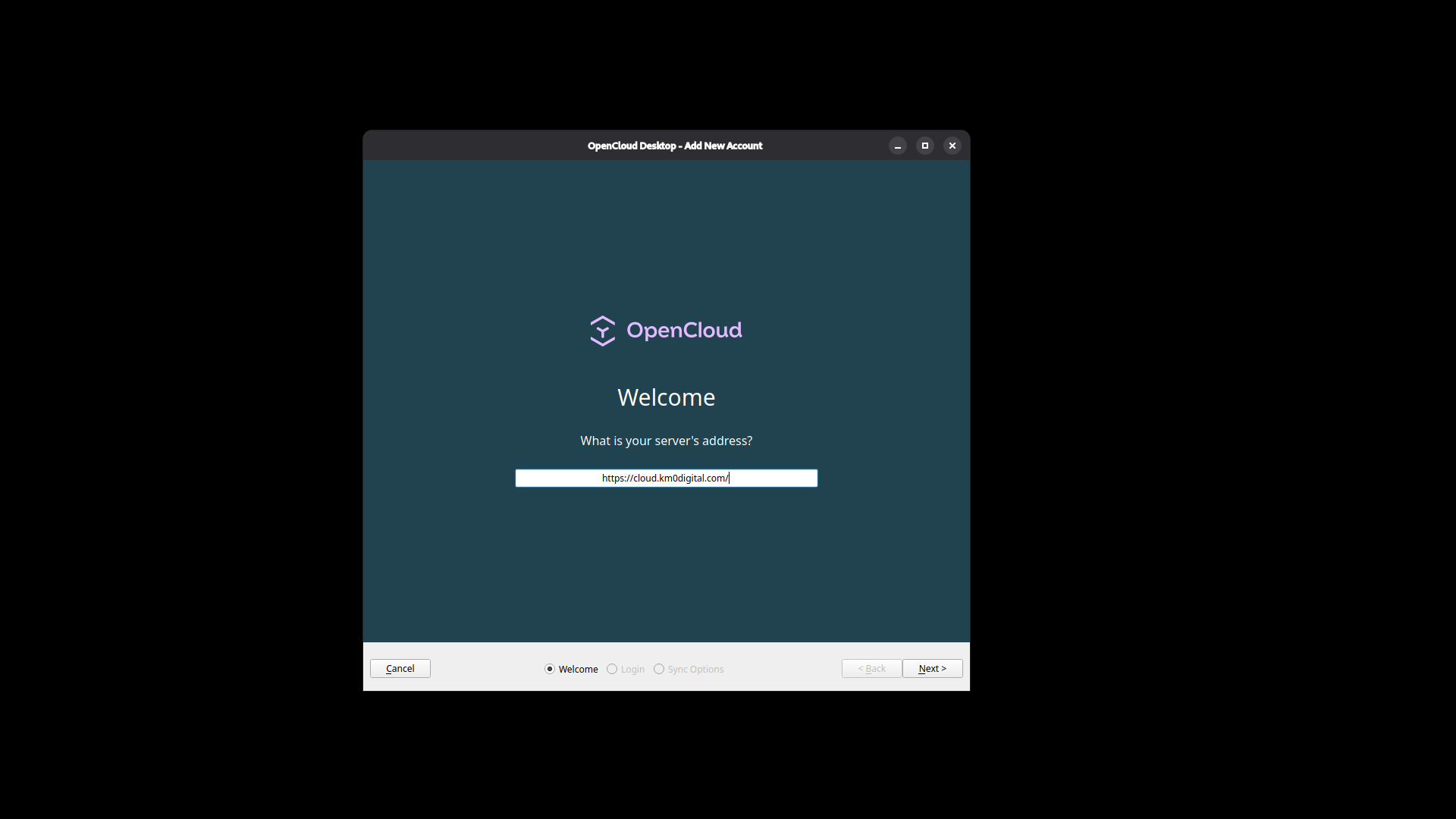
- If you add or reconnect an account, you see Welcome and What is your server's address?.
- Type exactly
https://cloud.km0digital.com/(includehttps://, no extra spaces). - Choose Next.
Step 2
Sign in with the web browser
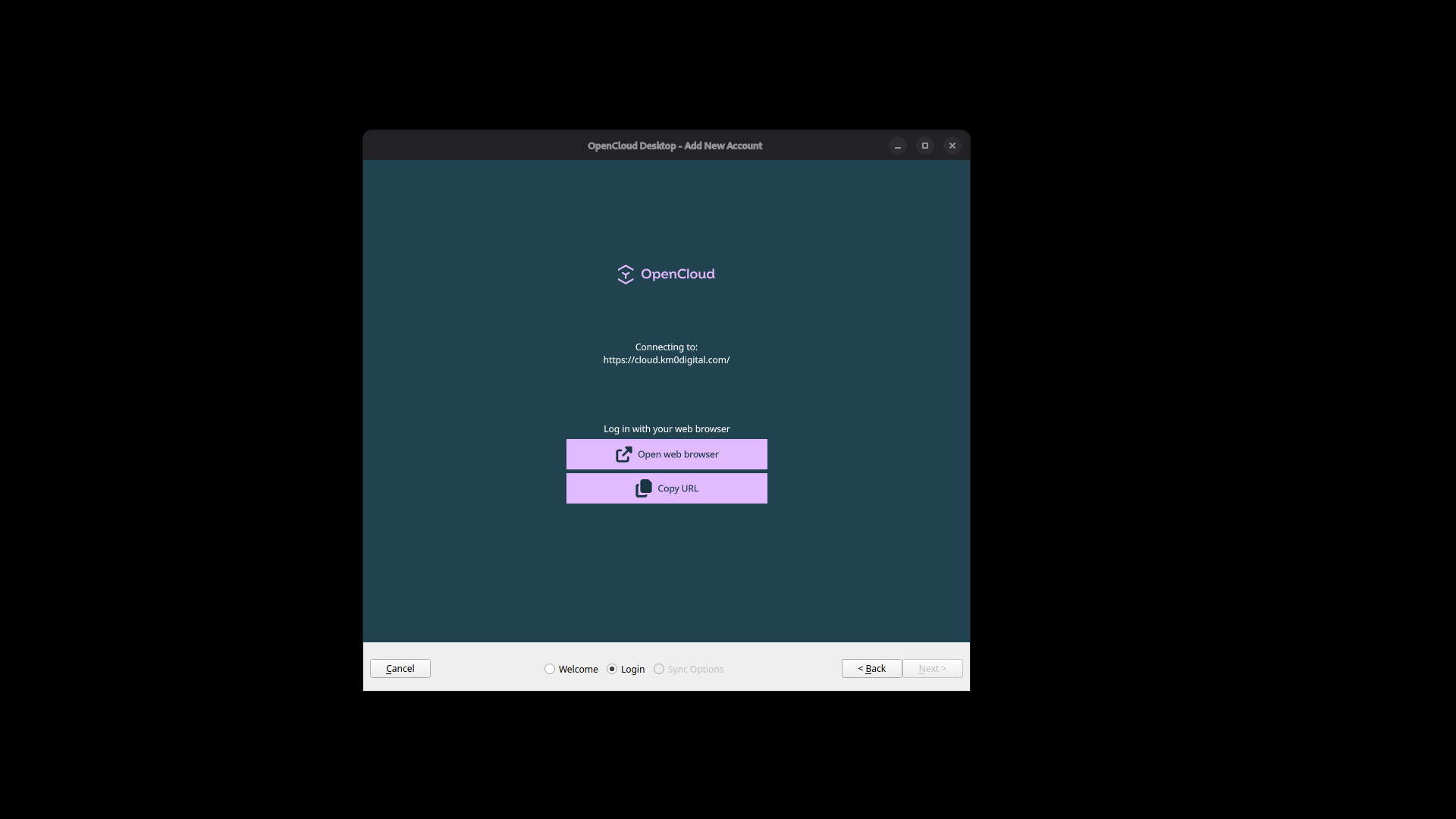
- On Log in with your web browser, choose Open web browser.
- Complete the shared KM0 login (password and 2FA if enabled).
- Return to the desktop client when it continues to sync options.
Step 3
Choose the sync folder
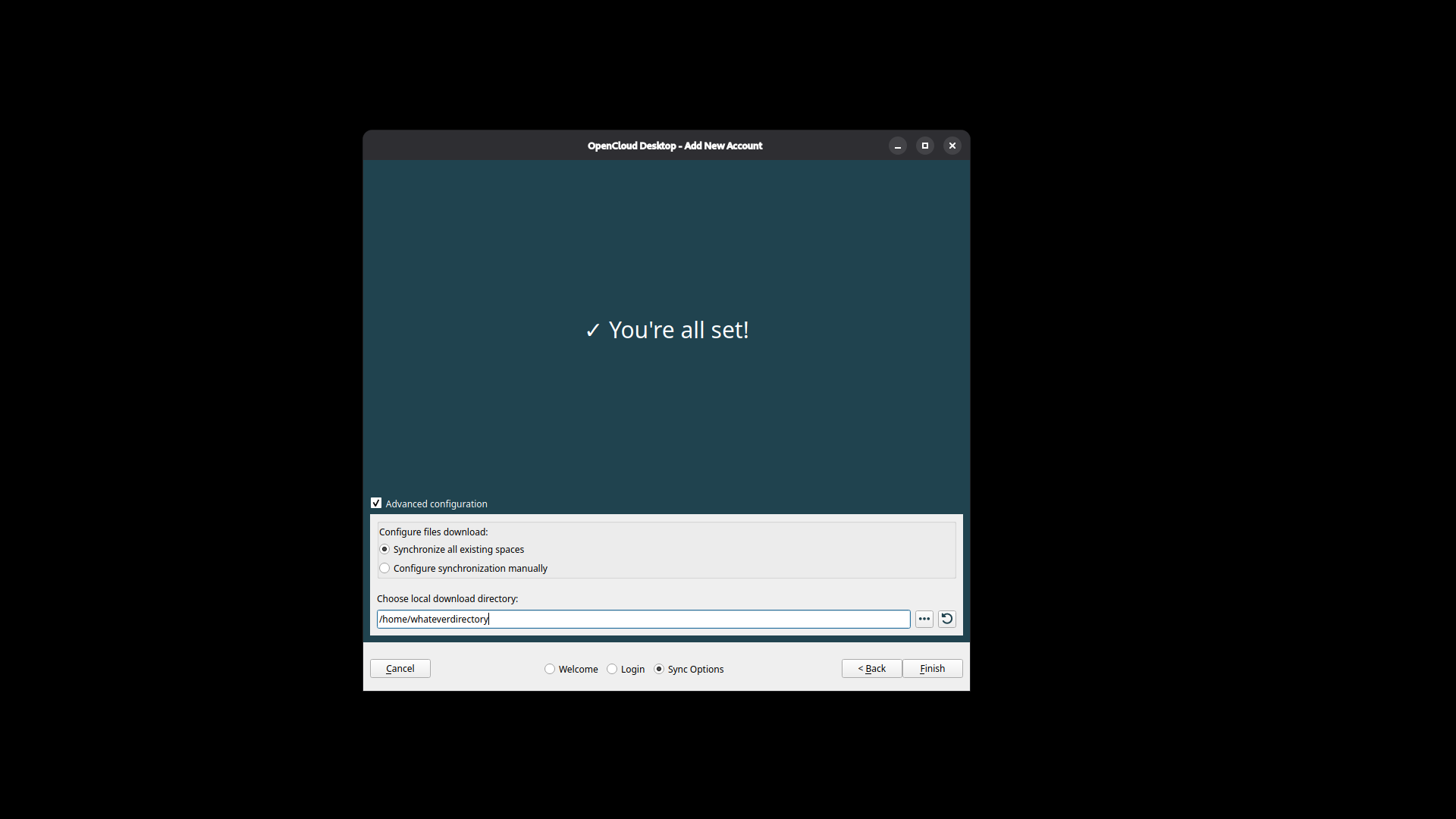
- When you see You're all set!, open Advanced configuration if you need to pick the folder.
- Confirm the local download directory is the folder you already use (avoid creating a second copy by mistake).
- Choose how spaces sync, then Finish.
If the client offers a brand-new empty folder and you already have a full sync folder, stop and contact us before accepting.
Related