On this page
Enable 2FA on your KM0 account
Turn on two-factor authentication in the KM0 account console for the shared login used by Cloud web, desktop, and mobile.
Introduction
Two-factor authentication (2FA) asks for a code from an authenticator app after your password. It protects the same KM0 login used by Cloud in the browser, desktop, and mobile. You set it up in the KM0 account console. You need a phone with an authenticator app (for example Google Authenticator, FreeOTP, or Microsoft Authenticator).
Step 1
Open the KM0 account console
- Go to https://sso.km0digital.com/realms/km0digital/account.
- If you are not signed in, complete the shared KM0 login (email or username and password).
- You land in the account console for your KM0 account.
Step 2
Open two-factor authentication
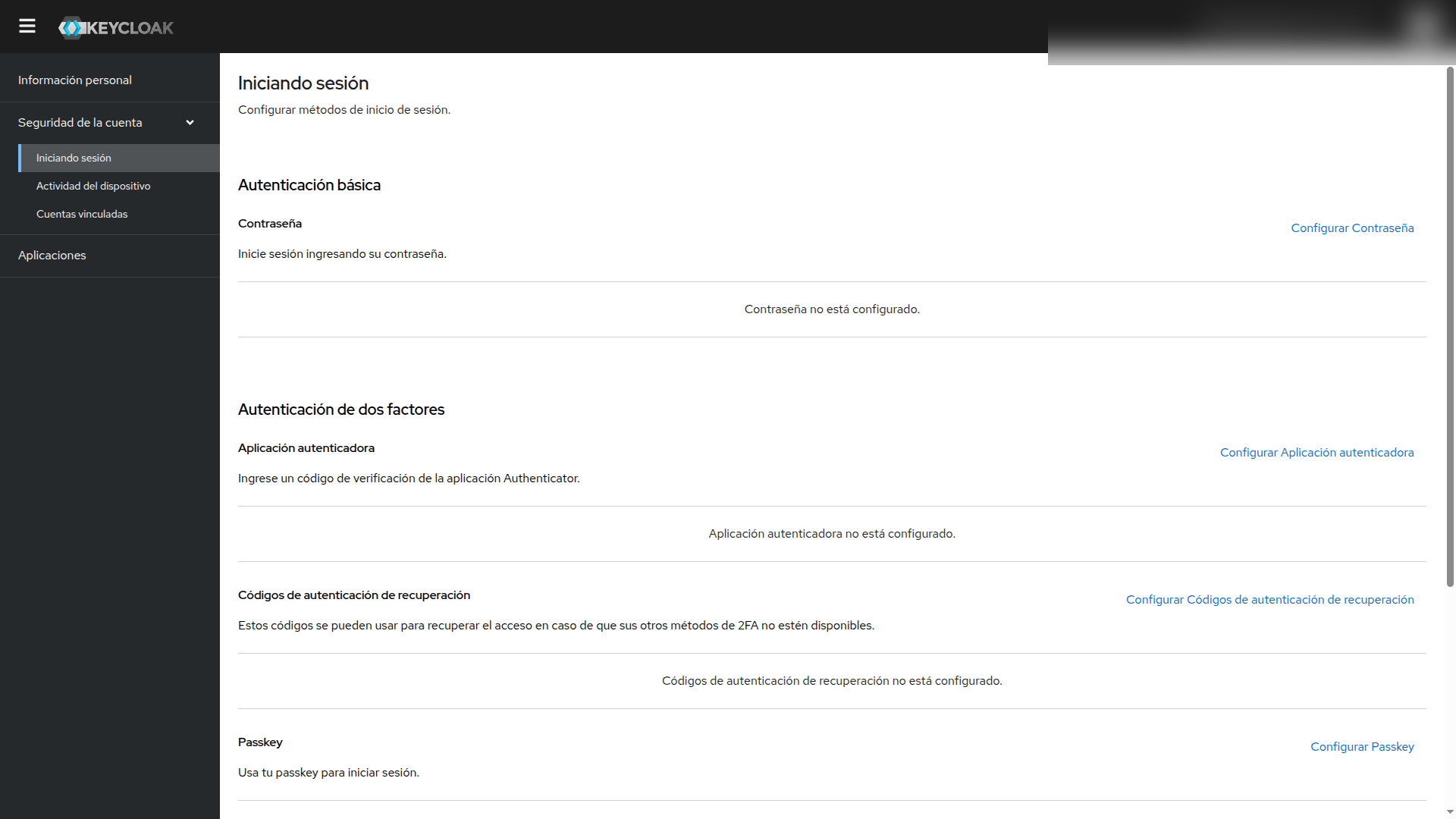
- In the sidebar, open Account security (Seguridad de la cuenta).
- Open Signing in (Iniciando sesión).
- Under Two-factor authentication, choose Set up Authenticator application (Configurar Aplicación autenticadora).
Step 3
Link your authenticator app
- Install an authenticator app on your phone if you do not have one yet.
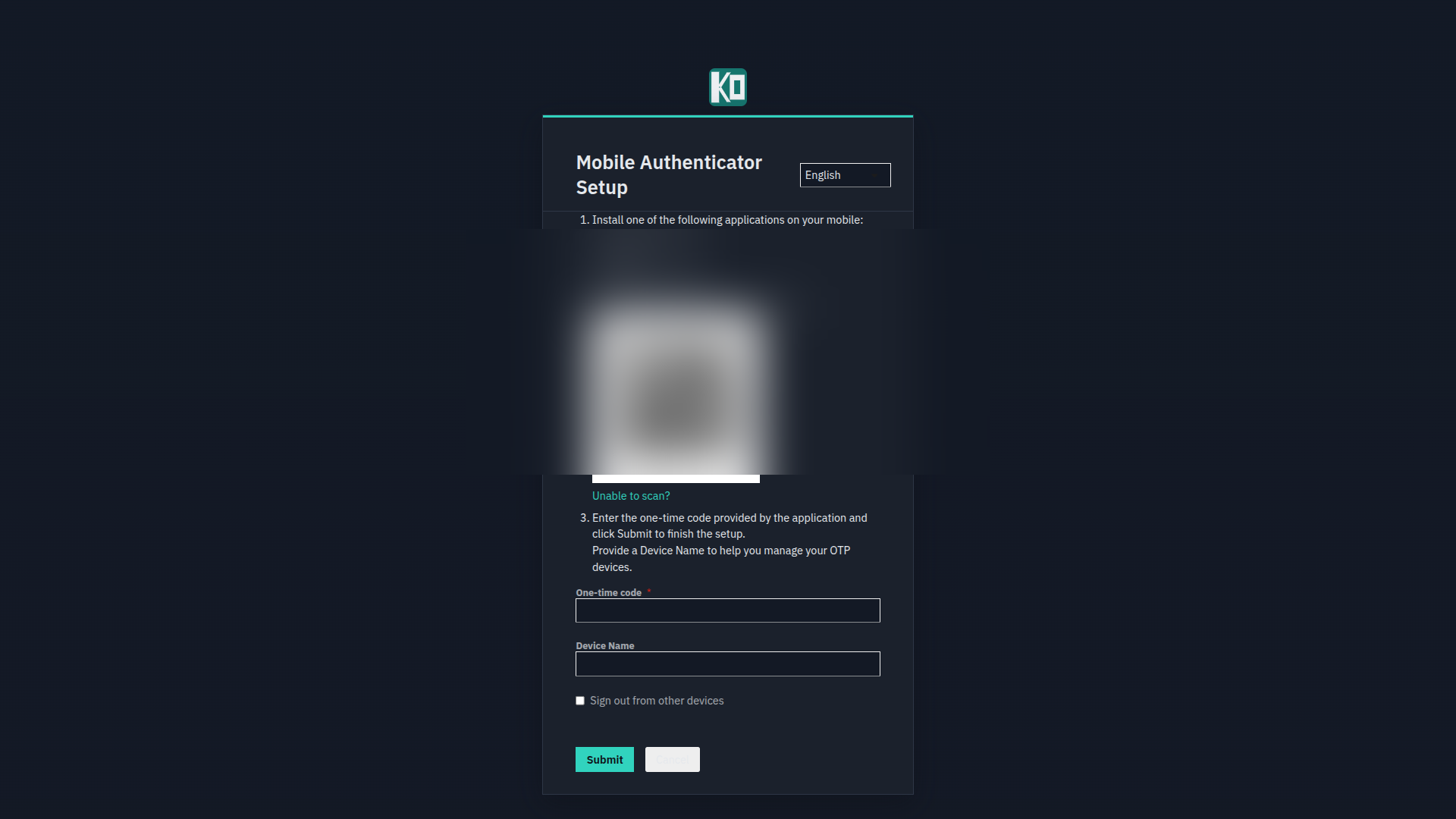
- Scan the QR code shown on Mobile Authenticator Setup (the QR in our public screenshot is blurred on purpose).
- Enter the one-time code from the app, optionally set a device name, then Submit.
- If the flow offers recovery codes, save them offline in a safe place.
Step 4
Check a fresh sign-in
- Sign out of Cloud (or the account console).
- Sign in again at https://cloud.km0digital.com/ with password, then the authenticator code.
- Confirm you reach your files.
Desktop and mobile will ask for the same second factor when they open the shared login.
Notes
If you lose the phone
Use a recovery code if you saved one. If you have no recovery path, contact KM0 support through the site contact form and prove account ownership. Do not share passwords in chat.