On this page
Sign in to KM0 Cloud with the shared login
Open Cloud in the browser and complete the shared KM0 sign-in used by web, desktop, and mobile.
Introduction
KM0 Cloud in the browser, the desktop client, and the mobile apps share one login. This guide covers the browser path. You need your KM0 address (or username) and password.
Step 1
Open Cloud
- Open your browser.
- Go to https://cloud.km0digital.com/.
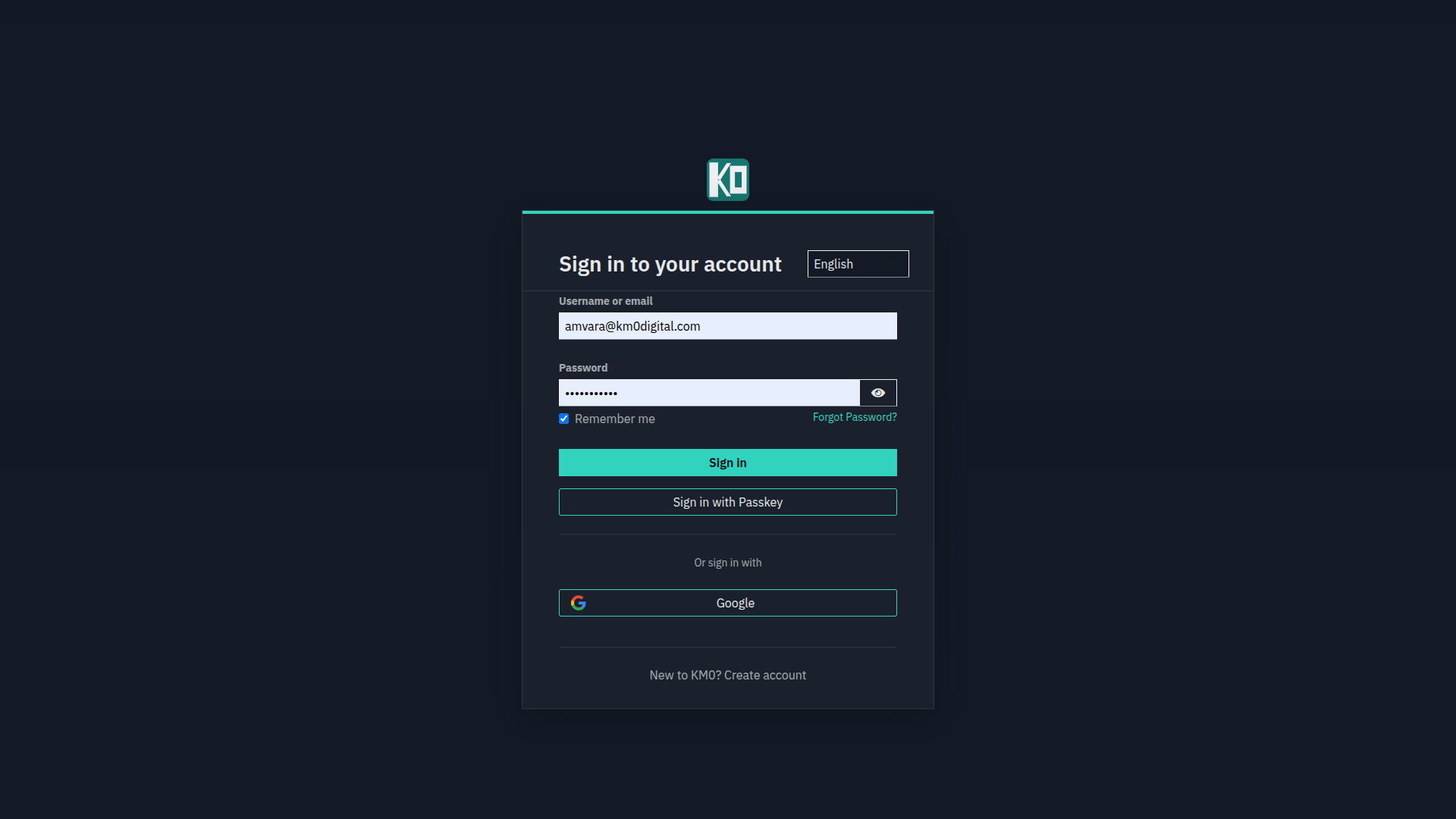
- If you are not signed in, the site sends you to the shared KM0 sign-in screen.
Step 2
Enter your KM0 credentials
- Type the email or username for your KM0 account.
- Type your password.
- Choose Sign in (or Sign in with Passkey / Google if you use those).
If you enabled two-factor authentication, enter the code from your authenticator app when asked. See Enable 2FA on your KM0 account.
Step 3
You land in your files
After a successful sign-in you return to Cloud and see your spaces and folders. The same account works when the desktop or mobile app asks you to sign in.
Common problems
Troubleshooting
- I forgot my password: use Forgot Password? on the sign-in screen.
- The page loops: clear cookies for Cloud, or try a private window, then sign in once.
- Desktop sync stopped: follow Re-login on OpenCloud Desktop.