On this page
Change your KM0 account password
Change the shared KM0 login password (Cloud web, desktop, and mobile) in the Keycloak account console.
Introduction
The password for KM0 Cloud (browser, OpenCloud desktop, and mobile apps) is changed in the shared login account console, not inside OpenCloud. The new password applies to Cloud web, OpenCloud Desktop, and the mobile apps. You need your current password. KM0 Mail (mail.km0digital.com) may still use a separate mailbox password if it is not yet unified.
Step 1
Open the KM0 account console
- Go to https://sso.km0digital.com/realms/km0digital/account/.
- If asked, sign in with your email or username and your current password.
- You land in the account console for your KM0 account.
Step 2
Open the signing-in section
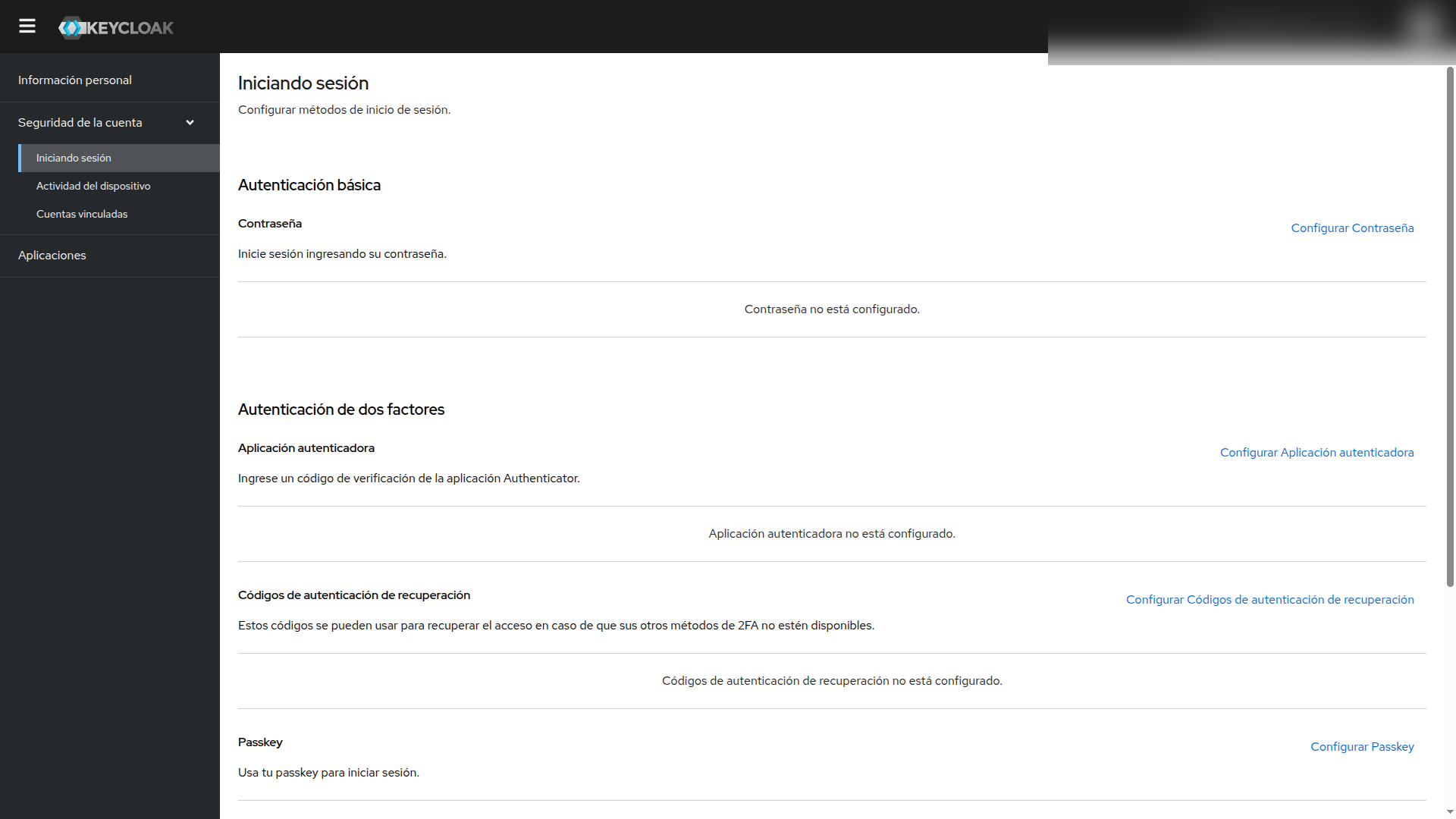
- In the left panel, open Account security (Seguridad de la cuenta).
- Open Signing in (Iniciando sesión).
Step 3
Update your password
- On the My password (Mi contraseña) row, choose Update.
- Enter your current password when asked.
- Enter the new password, confirm it, and save.
If the account had no password yet, the control may say Set up Password (Configurar Contraseña) instead of Update.
Step 4
Check a fresh sign-in
- Sign out of Cloud or the account console.
- Sign in again at https://cloud.km0digital.com/ with the new password.
- Confirm you reach your files. Desktop and mobile will use the same password on the next shared login.
Notes
If you forgot the password
Use Forgot Password? on the shared sign-in screen. To turn on 2FA, follow Enable 2FA on your KM0 account. Do not share passwords in chat.